
Calendar and activity logs
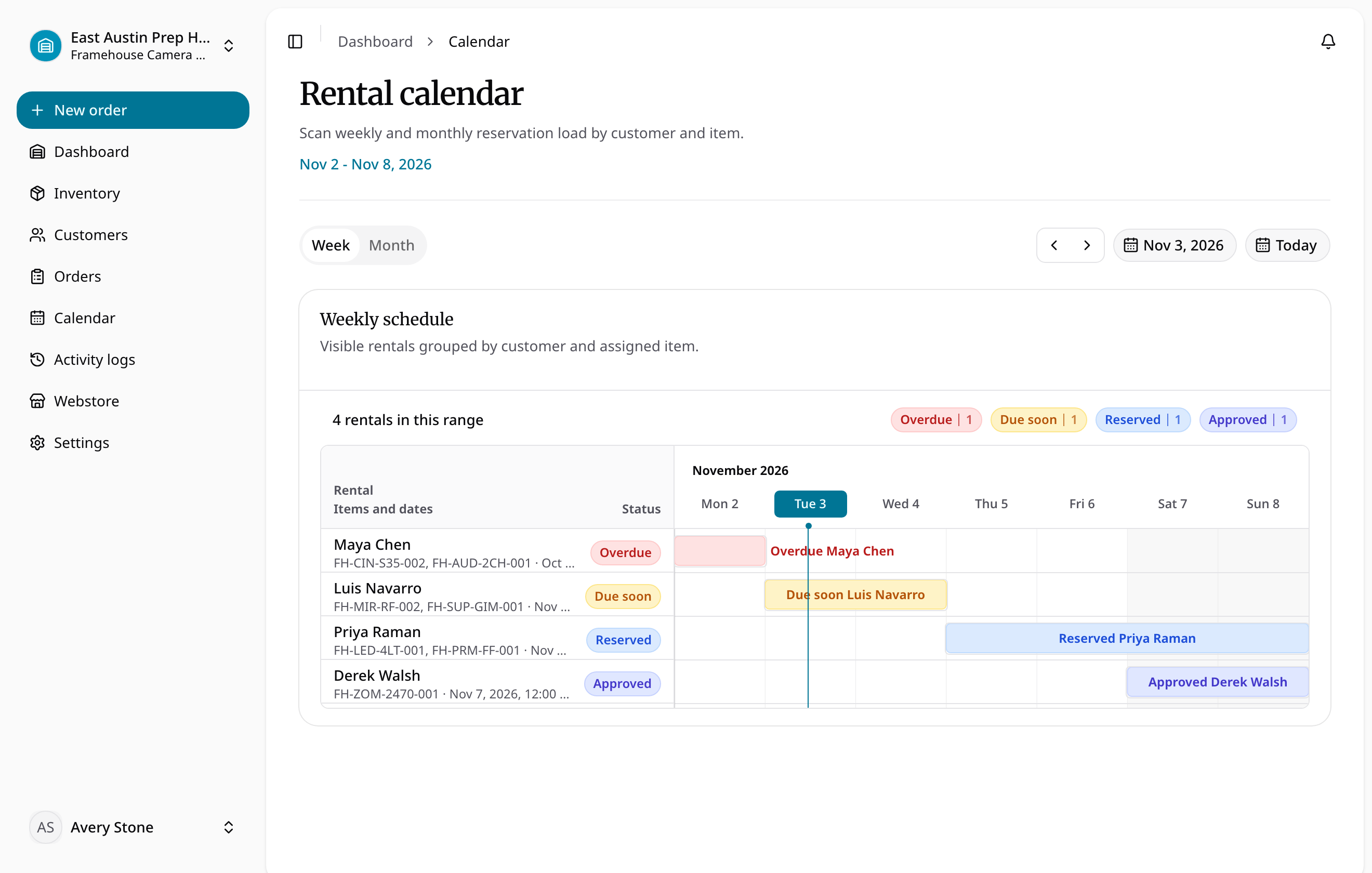
The Calendar shows weekly or monthly rental timing for the selected location. Filter by status to focus on upcoming reservations, checked-out equipment, or completed work. Use it to identify overlaps, preparation windows, and overdue returns.
Activity logs provide a reverse-chronological audit of recorded changes. Filter by user, product, category, or date range and open the linked current record or staff actor profile. Activity access requires both an admin role and the Pro plan; other direct requests open plan comparison.
Archived operational records keep their recordings and history. Staff profiles also show actions taken by that user in the current location.
Review timing and accountability
- Select the location and open Calendar for the relevant week or month.
- Filter by order status, then open an order to inspect the actual item and payment states.
- Use a rental product's Bookings tab for weekly, monthly, or yearly per-unit timing.
- When investigating a change, use the linked record history or, with Admin and Pro access, the activity log.
Use comments and mentions for collaboration and assignments to name one order owner. These controls complement the calendar; they do not reserve or release stock.
Use schedules on smaller screens
The schedule fills the available width and grows with its rental rows up to the remaining screen height. If rows or readable day columns cannot fit, scroll inside the schedule to reach later rentals or dates. Resizing the window or toggling the sidebar keeps your scroll position; changing the displayed date range resets it.
Use the rental list and chart together when following a long schedule. A compact view does not remove reservations or change their dates. Open the linked order for its exact item and payment state.