
How to Build a Rental Inventory Spreadsheet That Can Scale
Learn how to structure a rental inventory spreadsheet for products, physical units, customers, requests, reservations, deposits, returns, and maintenance.
June 18, 2026 · 8 min read
Key takeaways
The practical answer
- Separate products, variants, serialized units, and consumable quantities in the source data.
- Use explicit columns for pricing, deposits, identifiers, status, location, and notes.
- Preview and validate the import before rows become live rental inventory.
A rental inventory spreadsheet is usually the first serious operating system for a small rental business.
It is flexible. It is familiar. It does not require a software rollout before you have proven the business.
For a small team renting tools, trailers, compact equipment, production gear, event kits, or shared jobsite assets, that can be the right place to start.
The problem is not the spreadsheet.
The problem is the spreadsheet that starts as a quick list and then becomes the only record for inventory, requests, reservations, due-back dates, deposits, checkout, returns, maintenance, customer notes, and staff memory.
That kind of sheet gets harder to trust as the business grows.
If you set up your rental inventory spreadsheet carefully now, it can do two useful jobs. First, it can help you run the current operation with fewer missed details. Second, it can prepare your data for dedicated rental inventory software when the spreadsheet ceiling becomes obvious.
This guide walks through the fields worth setting up before you outgrow the spreadsheet.
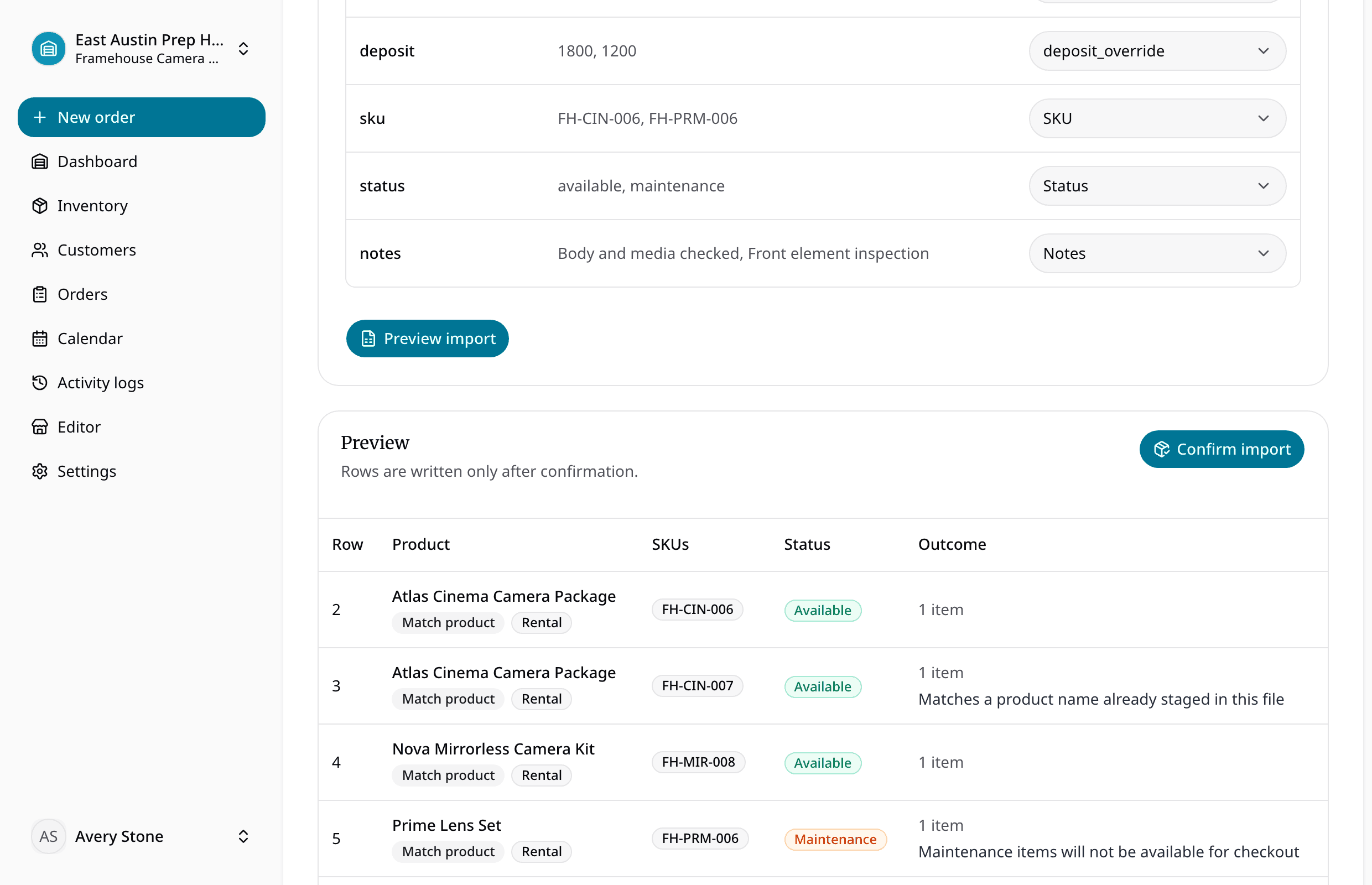
You can also download the free rental inventory spreadsheet template. It contains one importer-compatible worksheet, the exact headers RentalBench maps automatically, and three valid example rows covering serialized rentals, generated rental SKUs, and consumable stock. Replace or remove the examples, keep the header row, and upload the XLSX directly from Inventory imports.
Start with the job of the spreadsheet
Do not begin by adding every column you can think of.
Begin with the questions your team needs to answer during a normal rental day:
- What do we rent?
- Which exact physical items do we own?
- Where is each item?
- Is it available, reserved, checked out, returned, or in maintenance?
- Who has it right now?
- When is it due back?
- Has a deposit been collected?
- What needs inspection before the next rental?
- Which customer or jobsite is tied to the order?
Those questions should shape the sheet.
A rental inventory spreadsheet is not only a product catalog. It is a working record for items that leave your control and come back later. That means it needs dates, statuses, customer context, and return notes. A plain list of item names will not hold up for long.
If you are still comparing free tools, the free rental inventory software trial page explains where the 14-day trial fits. This article focuses on the spreadsheet structure itself.
Use separate tabs instead of one giant sheet
The fastest way to make a spreadsheet messy is to put every rental detail in one tab.
One row tries to describe the product, physical unit, customer, reservation, checkout, return, deposit, and maintenance note. Then a customer rents two items. Then one item comes back damaged. Then the customer extends only one unit. Soon the row no longer describes reality.
Use separate tabs with clear jobs.
For most small rental teams, start with these:
- Products
- Physical items
- Customers
- Requests
- Reservations and orders
- Returns and maintenance
Each tab has a purpose, and staff are less likely to overwrite important details just to make a row fit.
Tab 1: Products
The Products tab is your rental catalog.
This is the customer-facing or staff-facing name of what you rent. It is not always the exact unit that leaves the shop.
Suggested fields:
- Product ID
- Product name
- Category
- Description
- Included accessories
- Default rental period
- Standard deposit
- Replacement value
- Customer-visible notes
- Internal notes
- Active or inactive
For example, "14 ft utility trailer" may be a product. You may own three actual trailers behind that product.
The goal of this tab is consistent language. Staff should not enter "utility trailer," "14-foot trailer," "open trailer," and "UT trailer" as four different products unless those are truly different rental options.
Clean product names help every other workflow: requests, reservations, availability checks, checkout paperwork, and later migration into inventory management software.
Tab 2: Physical items
The Physical items tab is where the spreadsheet becomes useful for real rental operations.
Use one row per actual unit when the unit matters.
Suggested fields:
- Item ID
- Product ID
- SKU or asset number
- Serial number, VIN, plate, or barcode
- Home location
- Current location
- Current status
- Condition
- Date acquired
- Last service date
- Next service due
- Notes
This is the tab that answers, "Which exact item is this?"
If you own three pressure washers, create three rows. If one has a damaged hose and another is already promised for Friday, the spreadsheet needs to show that. A single product row with quantity three is not enough when condition, customer responsibility, or maintenance history matters.
Tab 3: Customers
The Customers tab keeps repeat details out of your order rows.
Suggested fields:
- Customer ID
- Customer name
- Company
- Phone
- Billing address
- Default jobsite or delivery address
- Preferred pickup or delivery notes
- Deposit notes
- Internal customer notes
- Created date
Do not overbuild this into a full CRM. Keep it practical.
The point is to avoid retyping the same customer details into every reservation. It also gives staff a quick place to check whether a customer has special delivery notes, a regular jobsite contact, or prior rental context that affects the order.
Customer records become more important as soon as more than one person handles requests. If the owner is the only one who remembers that a customer usually sends a foreman for pickup, the spreadsheet has not captured the operation.

Tab 4: Requests
A request is not the same as a reservation.
That distinction matters.
A customer may ask for a trailer next Saturday, but your team still needs to check the date range, item condition, pickup timing, deposit, and customer details before promising anything.
Suggested fields:
- Request ID
- Date received
- Customer ID
- Requested product
- Requested start date
- Requested end date
- Pickup or delivery
- Address or jobsite
- Request status
- Staff owner
- Notes
Useful request statuses include:
- New
- Reviewing
- Waiting on customer
- Confirmed
- Declined
- Unavailable
This tab protects your team from treating every inquiry as a booking. It also gives you a place to manage work that still needs a decision.
If you eventually move to an online intake flow, this same distinction should stay in place.
Tab 5: Reservations and orders
This is the tab where inventory commitments live.
Suggested fields:
- Order ID
- Request ID
- Customer ID
- Product ID
- Item ID
- Start date
- Due-back date
- Pickup or delivery
- Pickup location
- Return location
- Order status
- Deposit required
- Deposit collected
- Staff notes
Use a clear Order ID. Link the order to the customer. Link the order to the physical item when a specific unit has been assigned. If you are reserving from a pool of similar items, make that clear too.
The most important fields are start date, due-back date, item ID, and order status. Without those, staff cannot reliably answer whether the item is actually available.
Typical order statuses might include:
- Reserved
- Ready for checkout
- Checked out
- Due back
- Returned
- Closed
- Cancelled
Once you have more than a few active rentals, a real availability calendar becomes easier to trust than manual spreadsheet filtering. Until then, your spreadsheet should at least make overlapping reservations visible enough that staff can check before saying yes.
Tab 6: Returns and maintenance
Returns are where many spreadsheets fail.
An item being physically back does not always mean it is ready to rent again.
Suggested fields:
- Return ID
- Order ID
- Item ID
- Returned date
- Returned by
- Staff checked in by
- Return condition
- Missing accessories
- Damage notes
- Cleaning needed
- Maintenance status
- Deposit decision
- Ready-to-rent date
- Follow-up notes
This tab helps separate "back in the building" from "available."
That difference protects the next rental. A saw that needs inspection, a trailer with a tire issue, or a camera kit missing a charger should not go back into available inventory just because the customer returned it.
At minimum, your spreadsheet should support statuses like available, reserved, checked out, needs inspection, cleaning, maintenance, damaged, retired, and missing.
If maintenance notes do not affect availability, they are easy to miss. That is why RentalBench treats item statuses and maintenance as part of the rental workflow, not as a separate side note.
Fields that deserve extra care
Some spreadsheet fields matter more than others because they control day-to-day decisions.
Item ID should be stable. Do not rename it every time the product name changes. Use something staff can find on a label, tag, plate, barcode, or internal sticker.
Status should use a dropdown list. Free typing creates messy values like "out," "rented," "with customer," and "gone," which all mean roughly the same thing but are hard to filter.
Dates should be real date fields. Do not mix text like "next Friday" with actual dates. Due-back dates drive follow-up, availability, and customer conversations.
Deposit fields should be specific. "Yes" is weaker than amount required, amount collected, date collected, and deposit decision after return.
Location should be current. If an item can move between yards, shops, storage units, trucks, or jobsites, "available" is not enough. Staff need to know where it is.
Notes should not carry the whole system. A note is useful context. It should not be the only place where damage, maintenance, deposit status, or return readiness is recorded.
Spreadsheet rules that keep the operation cleaner
A spreadsheet only works if the team follows the same rules.
Keep the rules simple:
- One row per physical item when the unit matters
- One customer ID per customer
- One order ID per rental commitment
- No confirmed reservation without start and due-back dates
- No checked-out item without a customer and due-back date
- No returned item marked available until condition is reviewed
- No maintenance item left visible as rentable
These rules are not bureaucracy. They are how a small team avoids double bookings, unclear deposits, missing items, and return confusion.
It also helps to create saved views or filters:
- Available inventory
- Reserved this week
- Checked out now
- Due back today
- Overdue
- Needs inspection
- In maintenance
Those views turn the spreadsheet from a storage file into a daily operating tool.
Signs the spreadsheet is no longer enough
A rental inventory spreadsheet can work well for a while.
It is probably reaching its limit when:
- Staff check multiple tabs before answering basic availability questions
- Two people update the same rental in different ways
- Returned items still show as rentable before inspection
- Deposits live in a separate payment note or message thread
- Customers extend rentals and future reservations become unclear
- You cannot quickly see what is checked out right now
- Maintenance notes are easy to miss
- Nobody trusts the sheet without asking one specific person
The last sign is the clearest.
If the team does not trust the spreadsheet, it is no longer the source of truth. It is just a reference file.
That is usually when operators start comparing orders and reservations, checkout and returns, and inventory workflows in dedicated rental software.
Set it up so migration is not painful
Even if you plan to use a spreadsheet for another year, structure it like you may migrate later.
That means consistent IDs, clean categories, one row per physical item, real dates, controlled status values, and customer records that can be matched to orders.
Avoid merged cells. Avoid color as the only source of meaning. Avoid putting multiple items, dates, or customers in one cell. Avoid deleting old rows just because an item is retired or an order is closed.
Clean spreadsheet data gives you options.
Messy spreadsheet data traps you. Every future software move becomes a cleanup project before the real work can begin.
The practical takeaway
Use the rental inventory spreadsheet while it helps.
But build it around the real rental workflow from the beginning: products, physical items, requests, reservations, checkout, returns, deposits, maintenance, customer records, due-back dates, and item status.
That structure will make the spreadsheet more useful today.
It will also make the next step easier when your team needs stronger availability checks, cleaner order handling, item-level history, and a shared operating system that does not depend on memory.
About Ciprian Redinciuc
Ciprian Redinciuc writes RentalBench product and rental operations guides based on the workflows implemented in RentalBench: inventory, availability, orders, storefront intake, deposits, checkout, and returns.