
How to Manage Construction Equipment Rentals in RentalBench
Follow a construction equipment rental from customer request and attachment checks through delivery, checkout, return inspection, and maintenance.
July 10, 2026 · 11 min read
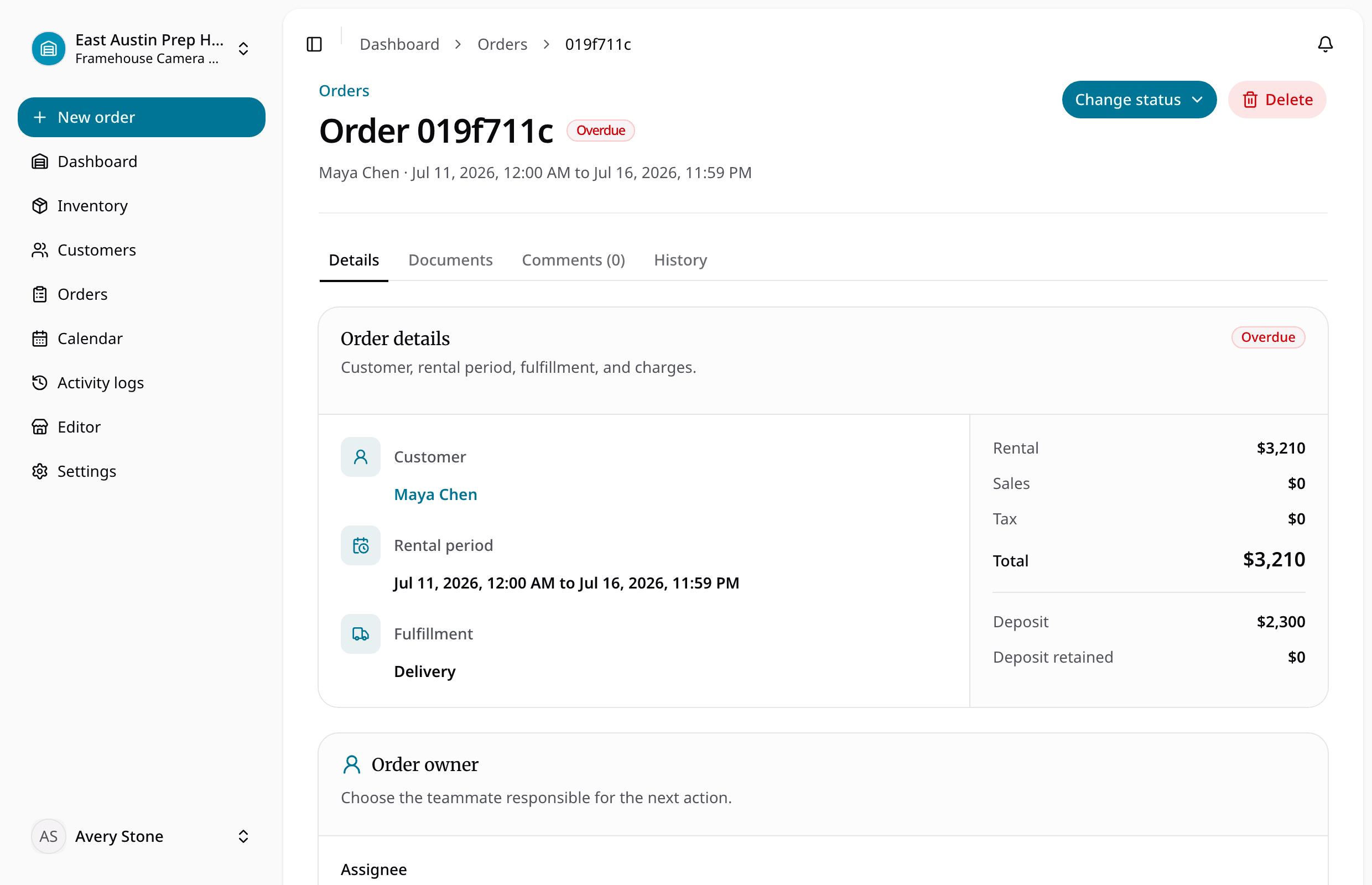
Key takeaways
The practical answer
- Check the complete equipment load, location, and date range before approving the request.
- Keep jobsite, document, deposit, checkout, and return details on the same order.
- Return inspection must change item availability before the next rental.
This walkthrough shows how to manage a construction equipment rental in RentalBench from start to finish. We will follow a mini excavator, a 24-inch bucket, a jobsite delivery, a deposit, a requested extension, a return inspection, and a damaged-attachment hold.
The point is not to demonstrate every setting in the product. It is to show where the rental record helps a small team make the next decision without checking a spreadsheet, calendar, payment note, and text thread first.
If you are still deciding what the system should cover, start with RentalBench for construction equipment rentals. This walkthrough focuses on the day-to-day order.
The rental we are going to run
A contractor calls on Monday morning. They need a mini excavator from Tuesday through Friday, a 24-inch bucket, and delivery to a jobsite across town. They will pay the required deposit before dispatch.
The request sounds simple. The counter still needs to answer several questions:
- Is a mini excavator available for the full date range?
- Is the requested bucket available for the same dates?
- Are the machine and bucket at the right rental location?
- Does another order need either item immediately after Friday?
- What deposit applies to this rental?
- Who will receive the delivery at the jobsite?
- What happens if the contractor asks to keep the equipment longer?
- Can both items return to ready stock, or does one need inspection or repair?
A reliable workflow keeps those answers on one rental record. Here is how that looks in RentalBench.
1. Add the product customers ask for and the unit staff hand over
Start by separating the product from the physical rental unit.
The product is what the contractor asks for: a mini excavator. It holds the customer-facing information such as the name, description, rental rate, category, photos, and deposit requirement.
When you are setting or reviewing that rate, the free equipment rental rate calculator turns purchase cost, recovery period, billable days, maintenance, overhead, and target margin into daily, weekly, and 28-day estimates with visible formulas.
The physical item is the exact machine staff will stage and check out. It can have its own SKU, location, condition, notes, and operational status. If the yard owns three similar excavators, each unit should be identifiable even though customers browse one product.
Use the same structure for attachments. “24-inch bucket” is the product. Each bucket that needs individual tracking can be a physical item beneath it.
This distinction matters because owning three machines does not mean three machines are ready. One may be reserved, one may be out, and one may be waiting for maintenance. The inventory management workflow keeps the catalog and physical units connected without pretending they are the same thing.
For construction rentals, exact item tracking is most useful for:
- Compact machines
- Trailers
- Limited or expensive attachments
- Serialized tools
- Kits with operationally important parts
- Items with condition or maintenance history
High-quantity, low-risk accessories may only need quantity tracking. The practical rule is straightforward: if the return desk needs to know which specific item came back, track the specific item that left.
2. Record the request before turning it into a promise
The contractor has asked for dates, but staff have not confirmed the rental yet. Treat that as a request, not an automatic reservation.
Create or record the customer request with the Tuesday-to-Friday window and the equipment they asked for. Keep the customer attached from the beginning so the next person can see who is waiting for an answer.
This small separation protects the schedule. A customer can ask for a date that looks open while the exact unit is already promised, overdue, or unavailable for service. The request captures intent without letting an unchecked date become a commitment.
For an online request, the same principle applies. The customer-facing storefront should feed the operational queue rather than create another inbox someone has to retype. Staff still review the requested items and dates before approval.
3. Check the machine, attachment, dates, and location together
Now make the availability decision.
Open the rental availability calendar and check the requested range. Do not stop after finding one free excavator. Confirm that the 24-inch bucket is also free for those dates and that both items can be fulfilled from the intended location.
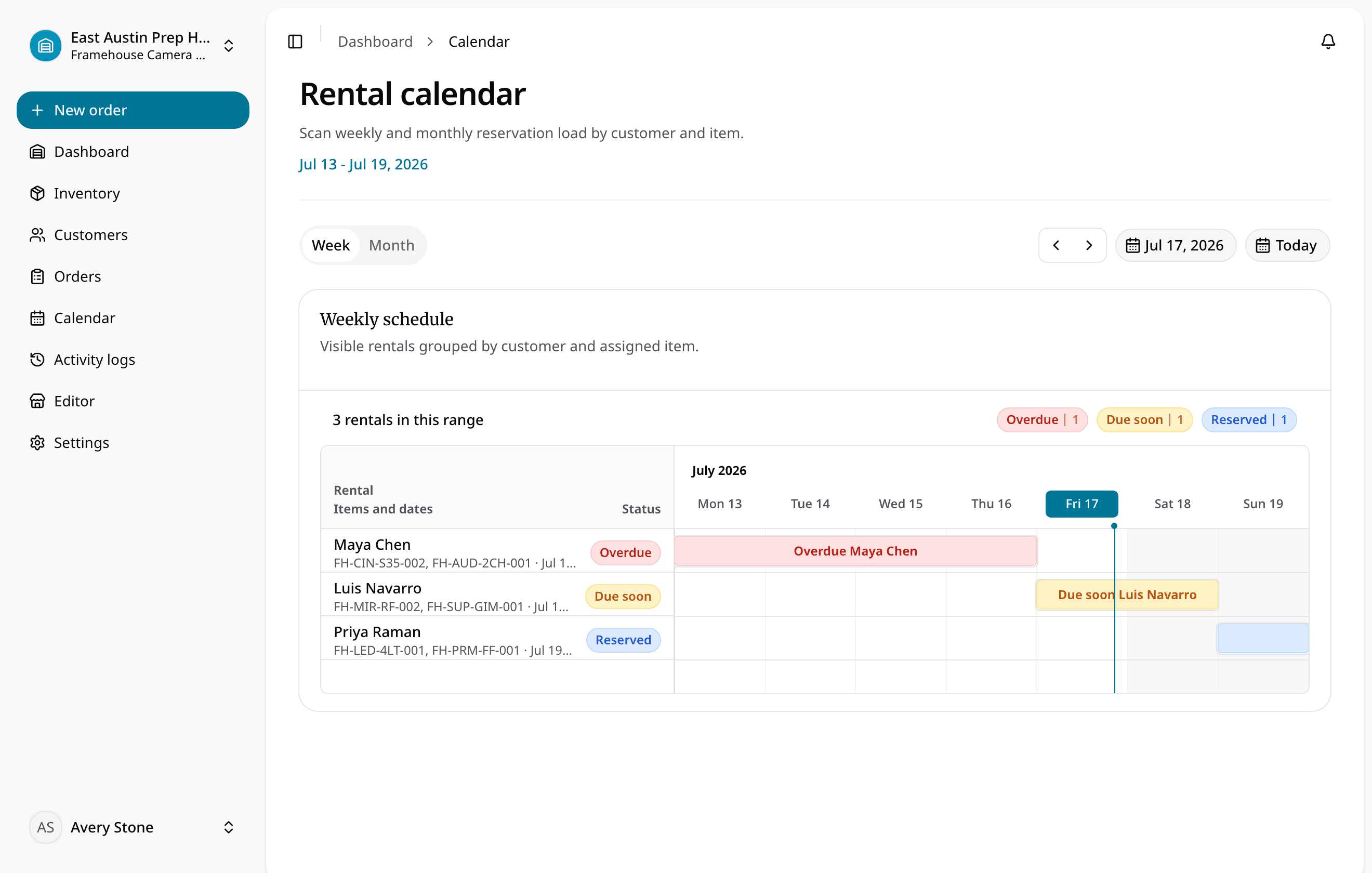
This is where a connected rental system earns its place. A shared calendar can show that Tuesday through Friday is open. It may not know that:
- The available excavator is held at another yard.
- The requested bucket is already reserved.
- A different machine is due back Tuesday morning but has no inspection buffer.
- An active rental is overdue.
- An item is physically present but blocked for maintenance.
Check the full rental before saying yes. If the bucket is unavailable, staff can offer another attachment, adjust the dates, or keep the request pending while they speak with the contractor. That is a better conversation than discovering the problem while loading the truck.
Once the complete equipment set is workable, approve the request and move it into the order workflow.
4. Keep the customer and jobsite on the order
The customer’s billing address is not always the construction site. Add the jobsite as the delivery address and keep the relevant contact with the order.
Useful delivery context includes:
- Jobsite address
- Site contact and phone number
- Requested delivery window
- Pickup or delivery choice
- Machine and attachment being loaded
- Notes the driver or counter needs for the handoff
RentalBench keeps customer and address context close to the order so it does not disappear after the phone call. The pickup and delivery workflow then gives staff a clearer schedule of route windows, jobsite addresses, contacts, and equipment loads.
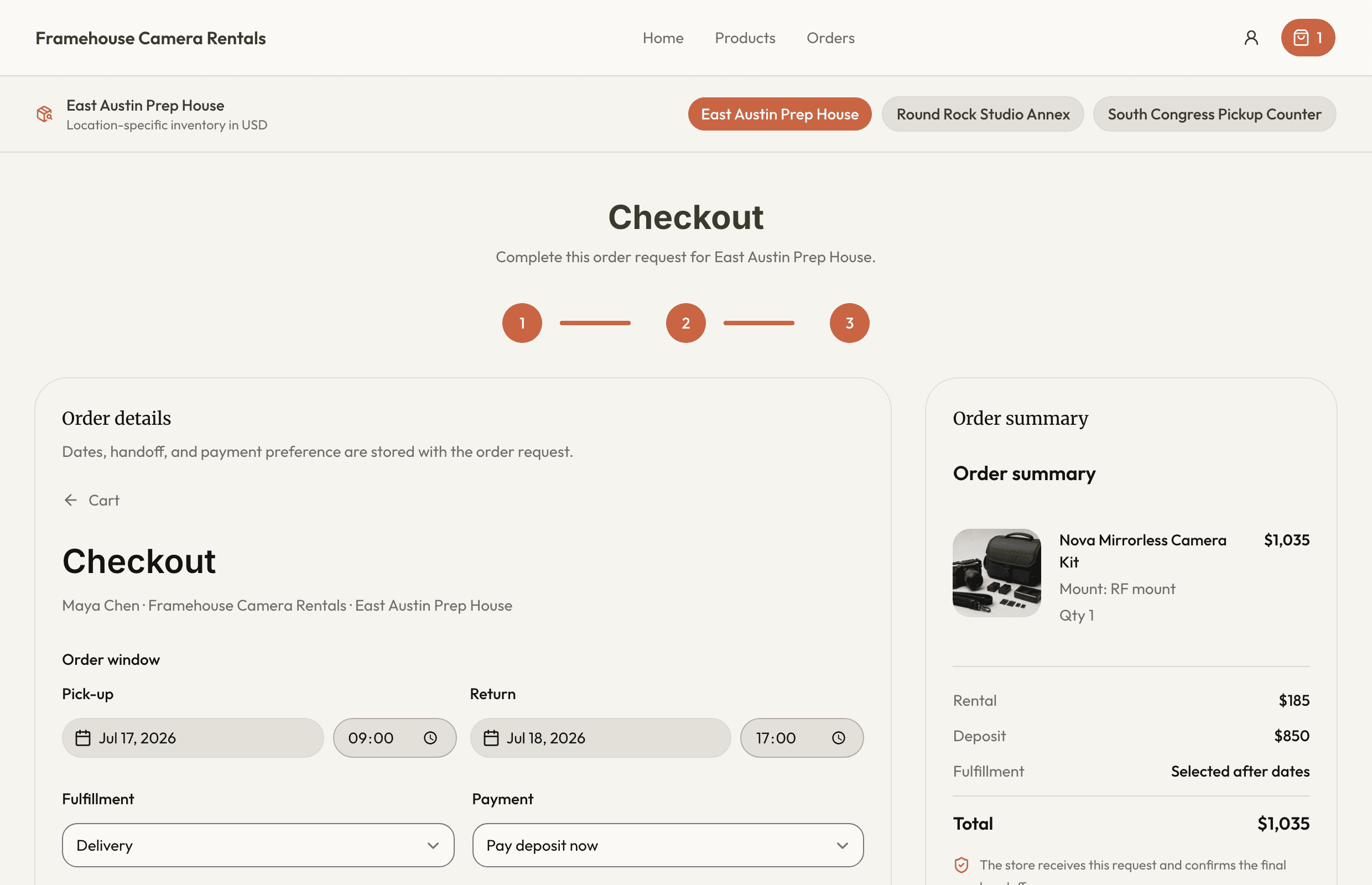
The goal is not advanced fleet dispatch. It is making sure the person preparing or delivering the rental sees the same promise the counter made.
5. Confirm the deposit and handoff details before dispatch
The mini excavator has a deposit requirement. Review it before the equipment leaves.
RentalBench can carry product-level deposit rules into the rental order, giving staff a visible order-level deposit amount and payment status. That keeps the money question beside the equipment and customer context instead of in a separate note.
Before dispatch, the team should be able to answer:
- What deposit was required when the order was created?
- Has it been paid or is it still pending?
- Is the order a delivery or customer pickup?
- Which exact items are leaving?
- Who is receiving them and where?
The deposit tracking workflow does not replace the team’s rental policy. It makes the agreed requirement easier to see when the handoff is about to happen.
6. Check out the exact machine and attachment
At checkout, assign the physical mini excavator and the physical bucket to the order. This is the moment the rental changes from prepared to out.
The item statuses should now make the yard reality visible:
- The selected machine is checked out.
- The selected bucket is checked out.
- The customer and order identify who has them.
- The due-back date remains visible.
- Neither item appears ready for an overlapping rental.
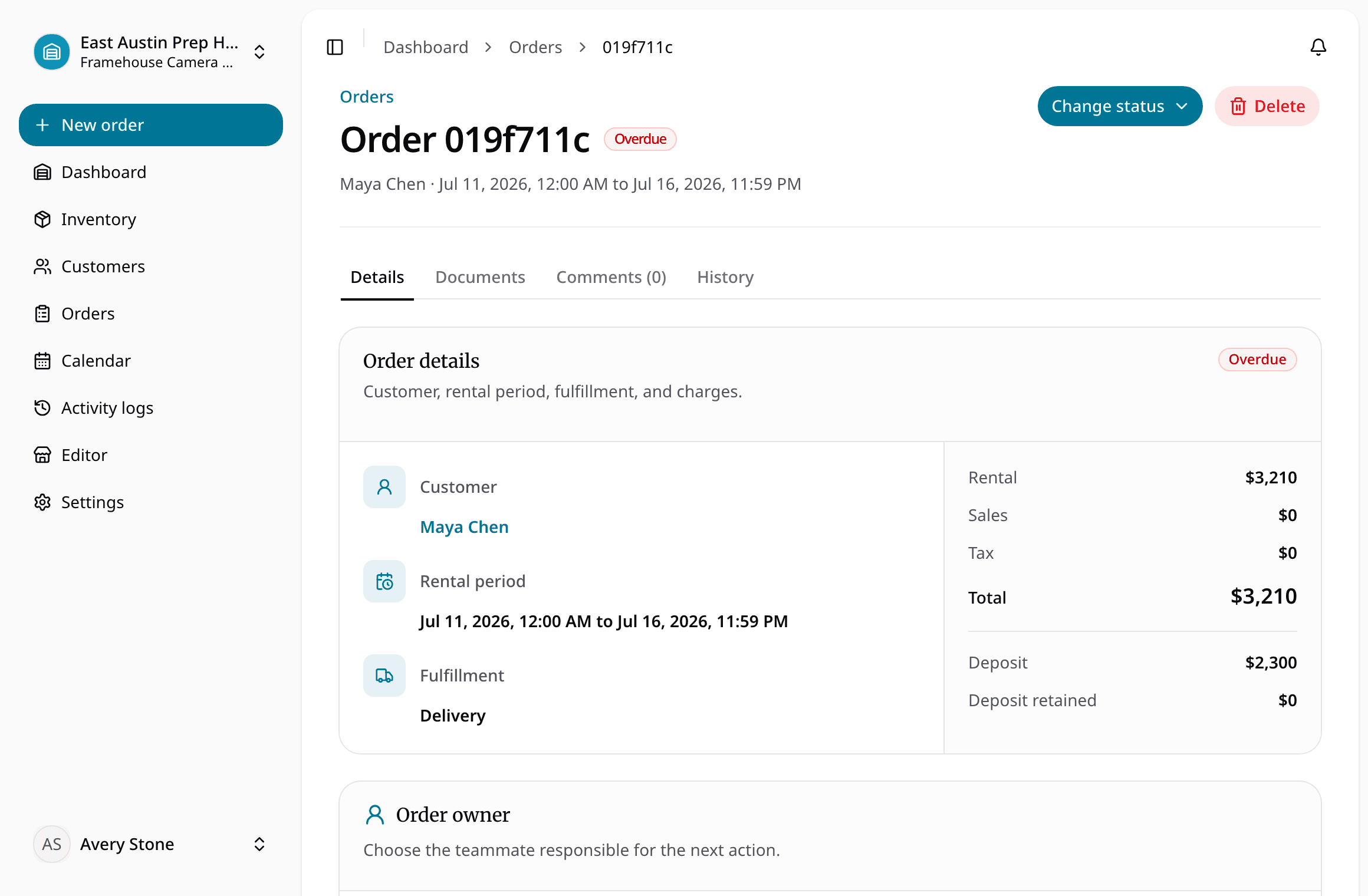
The checkout and return workflow gives the team a shared event instead of relying on someone to update a separate inventory sheet later.
That shared state helps across shifts. The person who approved the order does not have to be the person who loads it. The return can be handled by someone else again. Each person can see what was promised and what actually left.
7. Handle an extension without hiding the next conflict
On Thursday afternoon, the contractor asks to keep the excavator until Monday.
An extension is not just a new due date. It can affect another customer, a delivery plan, the bucket, and the next readiness window.
Before agreeing, check the extended period against existing reservations for both the excavator and bucket. If either item is already promised for the weekend or Monday, staff need to resolve that conflict before changing the order.
There are several honest outcomes:
- Approve the extension because both items remain free.
- Approve only through an earlier return time.
- Offer a substitute item for part of the period.
- Decline because another confirmed rental already depends on the equipment.
The important part is that the request is decided from the same availability picture the next booking uses. A changed date in a text message should not leave the calendar and order telling different stories.
8. Return and inspect every item separately
The machine and bucket return on Monday morning. Do not treat “the order came back” as “everything is ready.”
Check in the exact items that left. Then inspect them separately.
For the mini excavator, the team may confirm:
- The expected unit returned.
- The machine is in acceptable condition.
- No operational issue needs a hold.
- It can move back to ready stock.
The bucket has a bent edge. It is back, but it is not ready.
This difference keeps the next availability answer honest. The order can be returned while one item still needs attention. Staff should release the excavator and hold the bucket rather than blocking both or clearing both by accident.
The return process is where availability becomes trustworthy again. A calendar full of correct reservations still fails if every returned item automatically reopens before inspection.
9. Hold damaged equipment out of ready stock
Move the damaged bucket into the appropriate maintenance or unavailable status and add a useful note for the team.
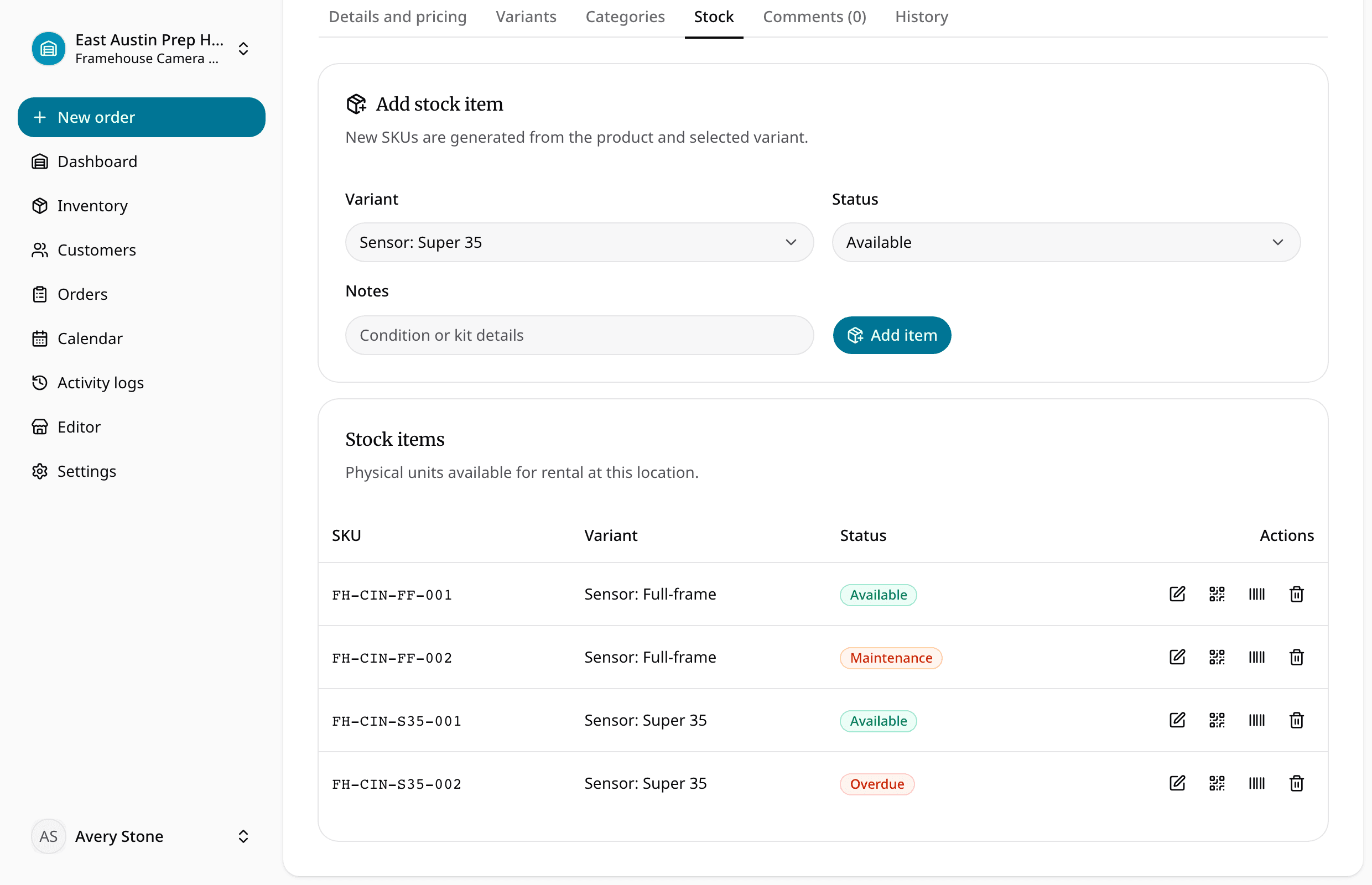
The item status and maintenance workflow is intentionally operational. RentalBench is not a telematics or full maintenance-management platform. The immediate rental need is simpler: an item that should not leave must not look ready to rent.
The note should help the next person act. “Damaged” is less useful than “cutting edge bent after order GL-1042; inspect before release.” The status prevents another promise; the note explains what needs attention.
When the bucket is repaired and inspected, staff can return it to ready stock. Until then, future availability should reflect the remaining buckets the yard can actually hand over.
The operating rules behind the workflow
The screens help, but the team still needs a few shared rules.
A request is not a confirmed reservation
Record what the customer wants, then check the whole rental before promising it.
Every important physical unit gets a clear identity
If staff care which machine, trailer, or attachment left, give it a SKU and track the exact item.
Due back is not the same as ready next
Leave enough room for return, inspection, cleaning, and repair. A tight turnaround is a decision, not an automatic assumption.
An extension checks every dependent item
The machine may be free while its attachment is needed elsewhere. Review the complete order when dates change.
A return closes the customer handoff; inspection reopens inventory
Keep those as separate decisions. This prevents damaged or incomplete equipment from slipping into the next rental.
A practical rollout for an existing construction rental yard
Do not wait for a perfect historical inventory project. Start with the equipment that creates the most scheduling pressure.
- Add compact machines, trailers, and limited attachments first.
- Give important physical units clear SKUs and starting statuses.
- Enter upcoming confirmed reservations so the calendar begins from reality.
- Agree on the small set of statuses staff will use.
- Run every new request through the same approval and order workflow.
- Make return inspection part of closing the rental.
- Add lower-risk tools and accessories once the team trusts the core process.
If the current inventory lives in a spreadsheet, import or recreate the clean fields without preserving every workaround. A colored cell that only one person understands is not valuable migration data. Product names, SKUs, rates, deposits, locations, and useful notes are.
What RentalBench is solving in this example
RentalBench gives a small construction rental team one place to answer the questions that move the order:
- What did the customer request?
- Can the whole rental be promised for those dates?
- Which exact items will leave?
- Where are they going?
- Is the deposit settled?
- When are the items due back?
- Does an extension collide with another order?
- What returned?
- What is truly ready again?
It is not trying to be an enterprise ERP, telematics platform, accounting suite, or workshop management system. The focus is the operating path between customer interest and rent-ready inventory.
That path is where small teams often lose time. When the machine, attachment, customer, dates, jobsite, deposit, checkout, and return live together, staff can make the next decision with less searching and fewer side conversations.
See how RentalBench handles construction equipment rentals, or review the equipment rental software workflow for the broader platform.
About Ciprian Redinciuc
Ciprian Redinciuc writes RentalBench product and rental operations guides based on the workflows implemented in RentalBench: inventory, availability, orders, storefront intake, deposits, checkout, and returns.