
Set personal or company billing details
Watch: Set billing information
Save Personal or Company billing details and manage payment methods. · 1:01
Payment setup is demonstrated in a sandbox with fictional details. Use your own business information when setting up live payments.

Read the transcript
To set up billing information, open Settings and choose Billing. This demonstration uses a test subscription and test payment details.
Choose Personal or Company according to who will receive the invoices. For Company, enter the legal company name and billing address. Tax and registration identifiers are optional.
Save the billing details and check that they have been applied. The billing address can differ from the rental location, and changes apply to future invoices.
Choose Manage billing to open the secure hosted portal. Review your subscription and current payment method.
Add the test card, set it as the default payment method, and confirm that the saved card appears. Then return to RentalBench. Use your valid payment details when managing a live subscription.
Open an existing subscription invoice and its PDF to see the invoice format. Previously issued invoices keep their original details; updating the billing profile does not rewrite them.
Your workspace subscription has its own billing identity. It is separate from your workspace display name, the bank account used to receive customer payments, and the billing addresses on customer orders.
Save billing details
- Open Settings → Billing as an admin.
- Choose Personal or Company in the billing details form.
- For Personal billing, enter the recipient name. For Company billing, enter the legal company name.
- Enter the street address, city, postal code, and country. Add the state or region where applicable. You can use the location address as a starting point, then review it.
- For Company billing, optionally enter the supported VAT or business tax ID and company registration number in their separate fields.
- Select Save billing details and check the synchronization result.
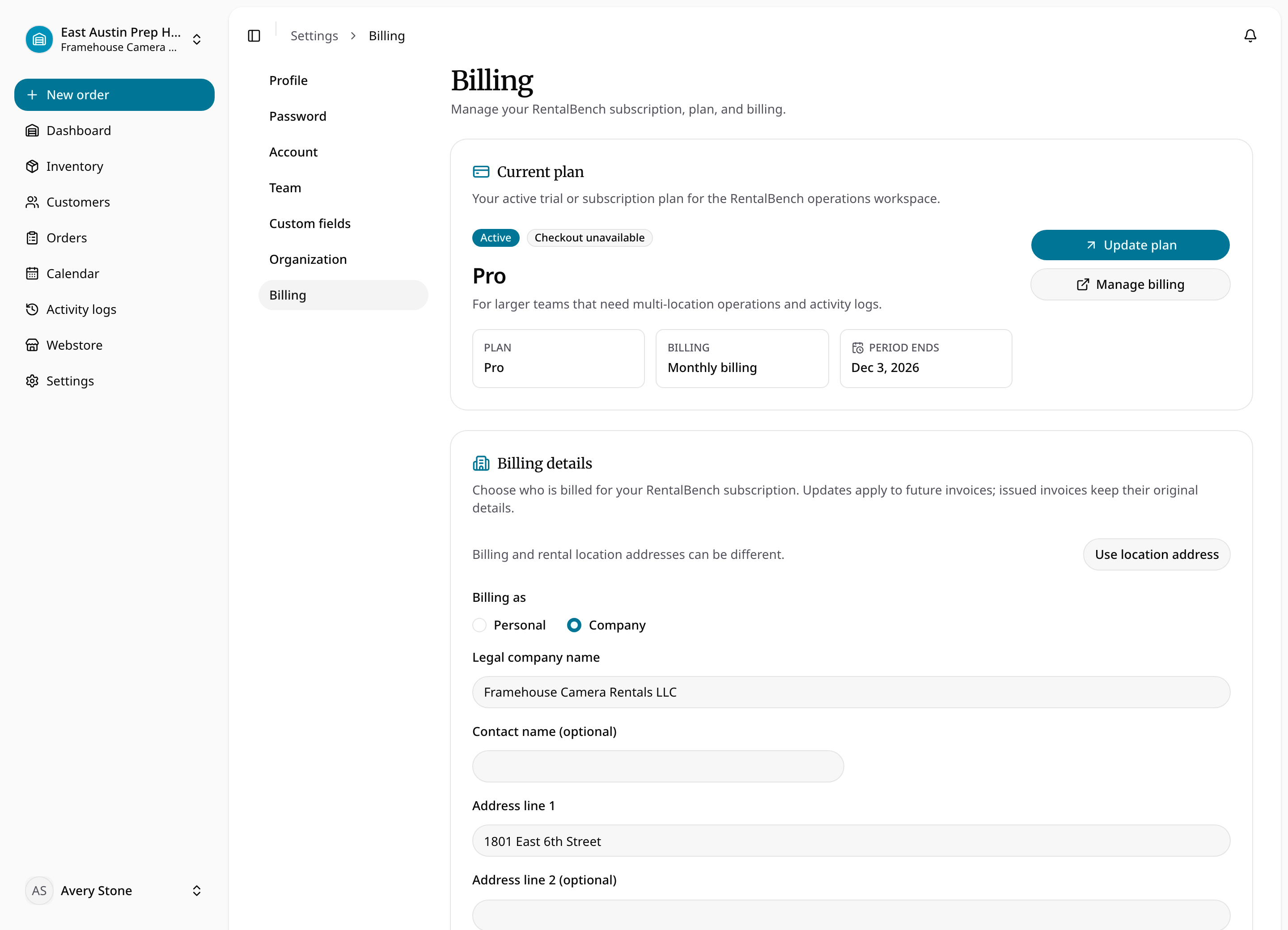
A new subscription checkout requires explicitly saved billing details. Existing subscriptions keep their current identity until an admin adopts the billing profile. Updating the workspace name alone does not update subscription invoices.
Check synchronization and payment methods
A saved profile can still be waiting for synchronization or have an error. Until synchronization succeeds, future invoices may use the previous details. Correct a rejected identifier and use Save and retry when offered. A locally saved form is not proof that the payment processor has accepted it.
Use Manage billing for payment methods and subscription management. Edit the billing identity inside RentalBench. Changes apply to future invoices; they do not rewrite previously issued records. Switching to Personal billing clears company-specific identifiers from this profile.
For customer billing addresses instead, see customer addresses and history.