
Set up online payments
Online payments let customers pay a deposit or the full amount through secure hosted checkout. This account receives rental-business payments; it does not pay for your RentalBench subscription.
Connect the payment account
- Open Settings → Organization as an admin and find Payments.
- Start bank account setup. RentalBench redirects to the secure payment-account onboarding surface.
- Complete the requested business, representative, and payout information using your own business details.
- Return to RentalBench and review the account readiness shown in Payments. Readiness synchronizes automatically after the hosted flow; there is no manual refresh button.
- Complete any outstanding requirements before enabling online collection.
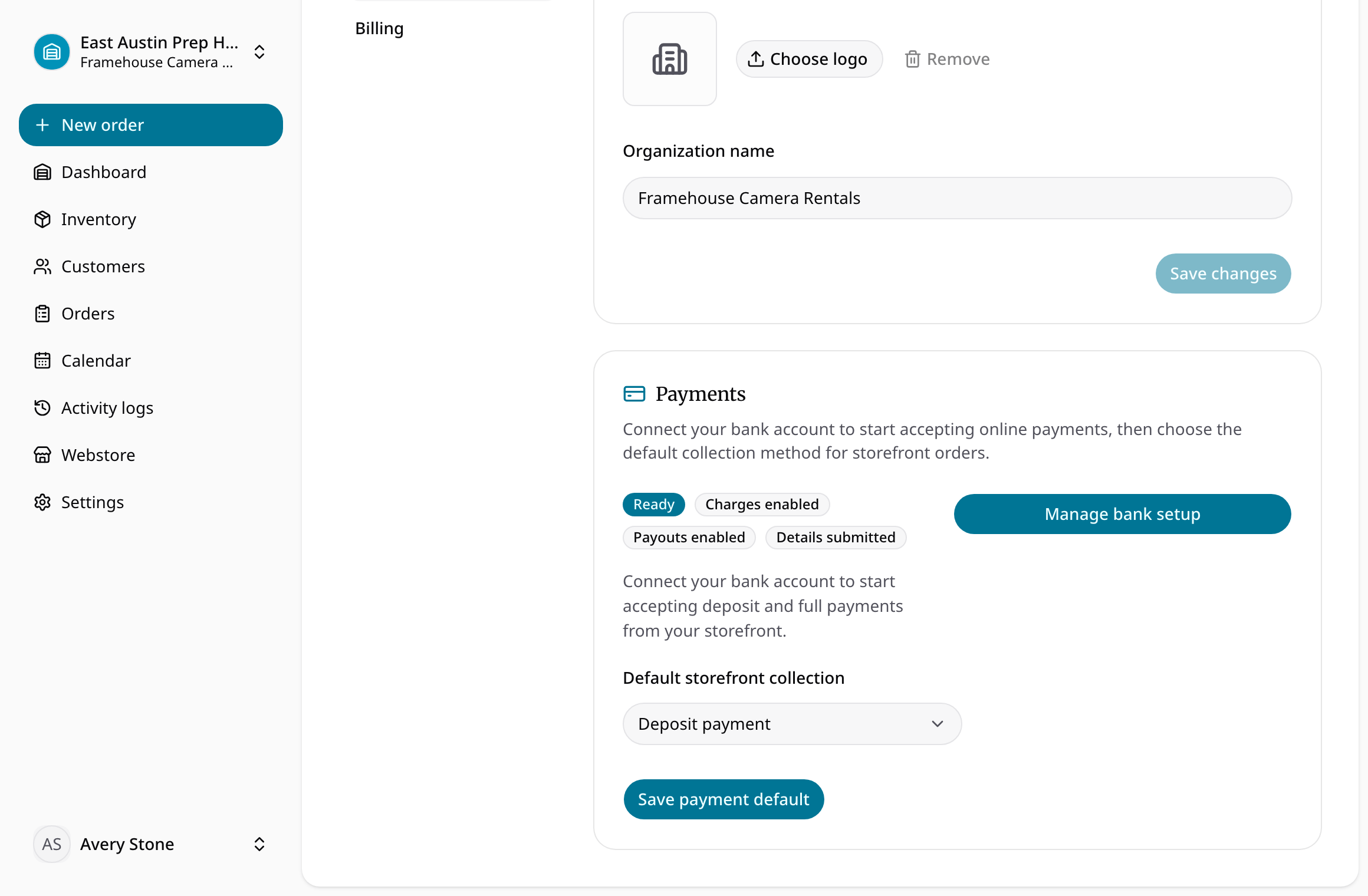
Starting onboarding does not mean the account can receive payments. If setup remains incomplete, follow the available account-management link and resolve the outstanding requirements.
Enable customer payment methods
Configure the webstore's payment options after the account is ready. Pay on pickup submits an order directly. Deposit payment and full payment require both a ready organization account and the corresponding enabled webstore method. The organization default collection method does not replace those webstore requirements.
For online collection, the storefront creates a requested order with payment pending and redirects the customer to hosted checkout. Payment confirmation reconciles back to the order. A customer returning from checkout is not, by itself, proof of paid status. Staff cannot check out an order requiring full payment until payment is paid.
Sandbox demonstrations use fictional payment details. Complete the live setup with your actual business information. See storefront configuration and plans and billing recovery.