
Get started with RentalBench
RentalBench is organized around an organization and one or more locations. The organization owns shared products, users, billing, and webstore configuration. Each location has its own address, schedule, customers, physical inventory, stock quantities, orders, calendar, and activity history.
After sign-up, the first admin supplies onboarding context and creates the first location. The app then opens that location’s dashboard. Staff can switch locations from the sidebar; all operational lists and availability calculations follow the selected location.
Accounts and access
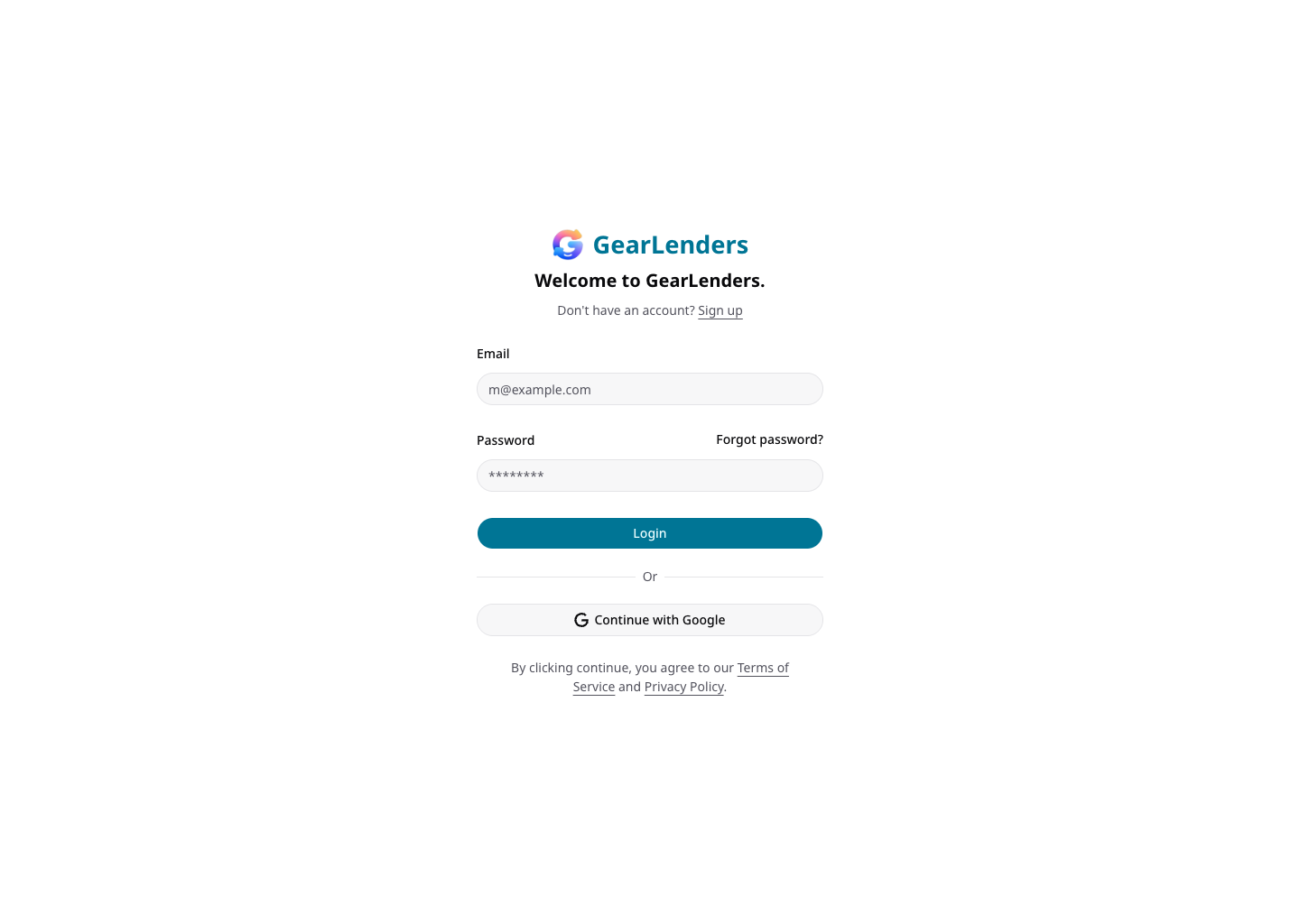
- Staff sign in with email and password or use Google sign-in when configured.
- Storefront customer accounts are separate from staff accounts and cannot access the operations app.
- Password reset emails contain a time-limited reset link.
- The Account page lists active staff sessions. Removing a session signs that device out.
- Deactivated staff cannot sign in, while their historical activity remains attributed to them.
The floating Get Started checklist appears only to admins until inventory, a customer, an online-payment-ready bank account, and an order have been added. It is organization-wide and disappears after all four milestones are complete.