
Create and configure a product
Open Inventory, select Add product, and choose whether the product is a rental or consumable. This choice determines how stock, pricing, checkout, and returns behave.
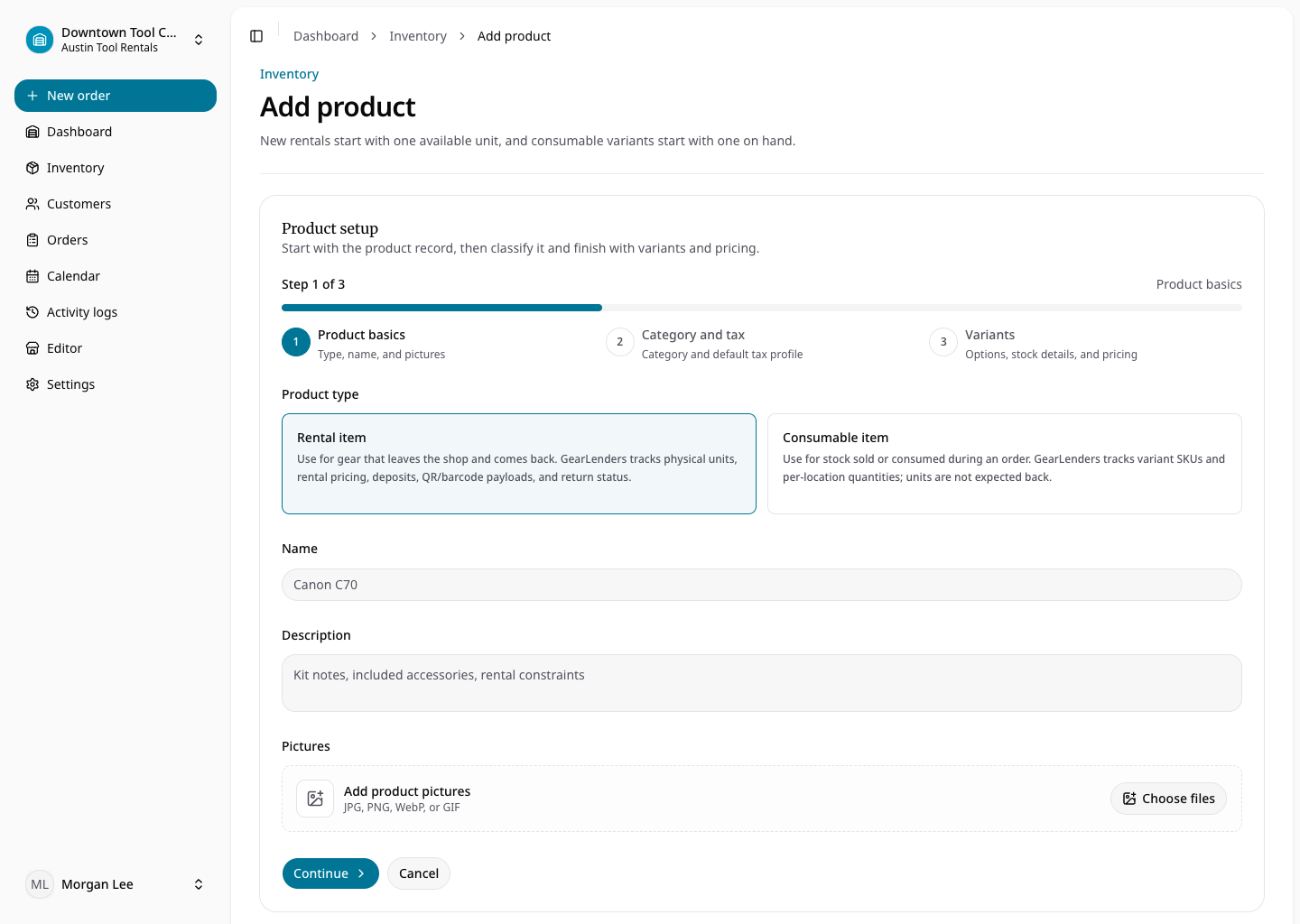
Enter a customer-facing name and description. Add product images, categories, tags, and any organization-defined product custom fields. Assign an existing tax profile or create a reusable profile inline.
For a rental, add daily, weekly, monthly, or yearly cadence prices and an optional deposit. Saving a rental without submitted variants creates one available physical item. When variants are submitted, RentalBench creates an available physical item for each submitted variant.
For a consumable, enter the sale price and variant SKU information. A default variant is created when no explicit variant is supplied. New consumable variants start with one unit on hand unless a quantity was entered.
After saving, open the product to manage images, variants, physical items, stock quantities, categories, and availability. A product-level QR code identifies the rental product; individual rental items also carry unique QR and barcode payloads.