
Cancel or archive an order
Watch: Cancel an order
Cancel pre-checkout work and release reserved inventory. · 0:29

Read the transcript
You can cancel an order before the equipment has been checked out. Open the requested or reserved order and verify that it is the correct booking.
Choose Cancel and confirm the action. The order now shows Cancelled, while the customer and order history remain available.
Check the item status and inventory availability. Reserved equipment is released for other orders. Cancellation is different from deleting an order, and checked-out equipment must go through the return process.
Cancel an order before checkout when it should not proceed. Cancellation releases reserved rental units and held consumable quantities. A checked-out order cannot be cancelled; its rentals must be returned and inspected.
Archiving is separate from lifecycle cancellation. It hides an order from operational lists but preserves the customer link, items, product and SKU snapshots, documents, payments, and activity history. Archived orders can still be opened directly from historical links.
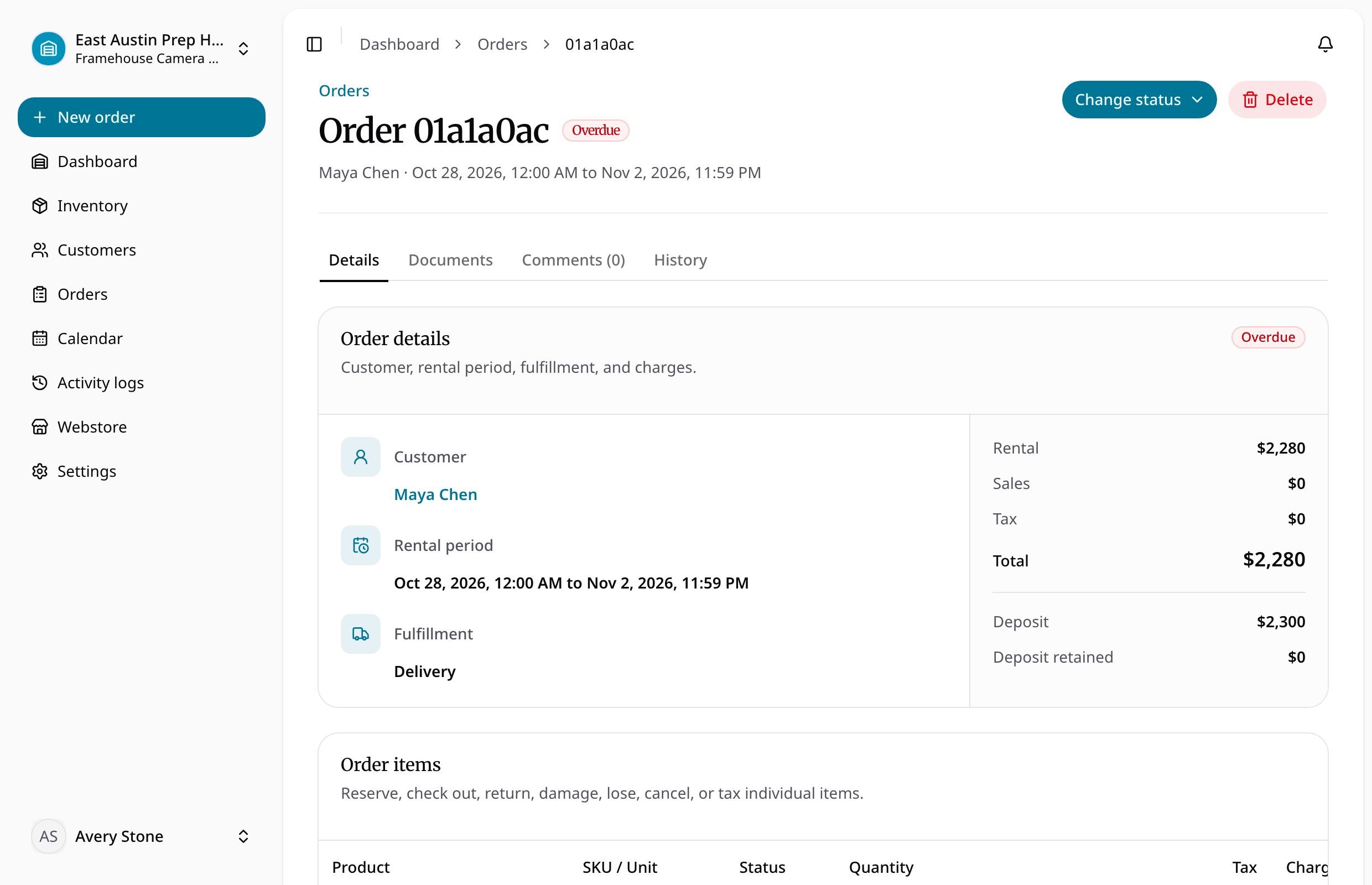
Cancel before handover
- Open the order and check whether any rental items have already been checked out.
- Use the cancellation action only while the order is eligible for pre-checkout cancellation.
- Confirm the resulting order/item states and release of reserved stock.
- Review the payment record separately if money has already been collected; cancellation is not proof that a refund has completed.
After handover, use return and inspection. Archive only when the record should leave operational lists while retaining history. Neither archiving nor cancellation rewrites previously issued PDFs.