
Set location details
Watch: Set location details
Save the address, currency, and time zone for a location. · 0:26

Read the transcript
To update a location, check the selected location, open Settings, and choose Location.
Enter the location name and address, then review the country, currency, and time zone. Choose the time zone used by the rental desk.
Save the location details and reload to confirm them. Rental periods and date displays use the location's time zone, so check it carefully before scheduling orders.
A location provides the operational context for inventory, customers, orders, availability, and the calendar. Check the selected location before changing its details.
Update a location
- Select the location in the app's location switcher.
- Open Settings → Location as an admin.
- Review the location name and full address, including country and postal code.
- Choose the intended currency and local time zone.
- Save the form and confirm the saved values.
- Open the dashboard or storefront location view and check the relevant address and local dates.
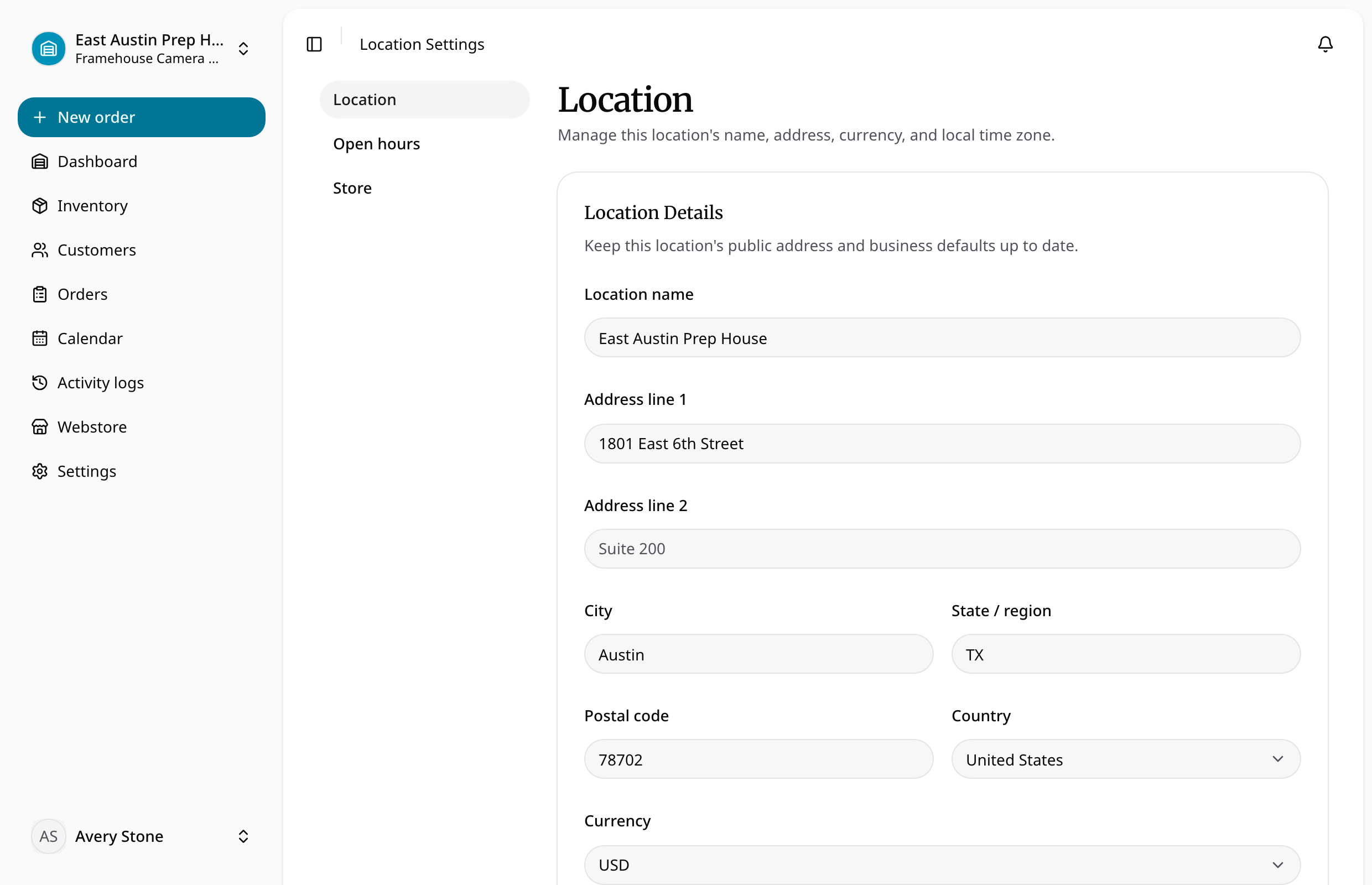
Dashboard periods and due/overdue timing use the location time zone. Choose the location's actual zone rather than relying on the browser's zone. Currency is an operational setting; changing it does not convert historical order amounts or rewrite issued PDFs.
Multiple locations
Pro permits additional locations. Admins have access to every location; managers and staff need explicit location membership. Existing extra locations remain accessible after a downgrade, while creating another location is blocked until the plan allows it.
Updating an address does not move inventory or orders between locations. Existing orders retain their address and financial snapshots. Configure the weekly schedule separately in opening hours.