
Set location opening hours
Watch: Set opening hours
Configure weekly pickup and return time windows. · 0:23

Read the transcript
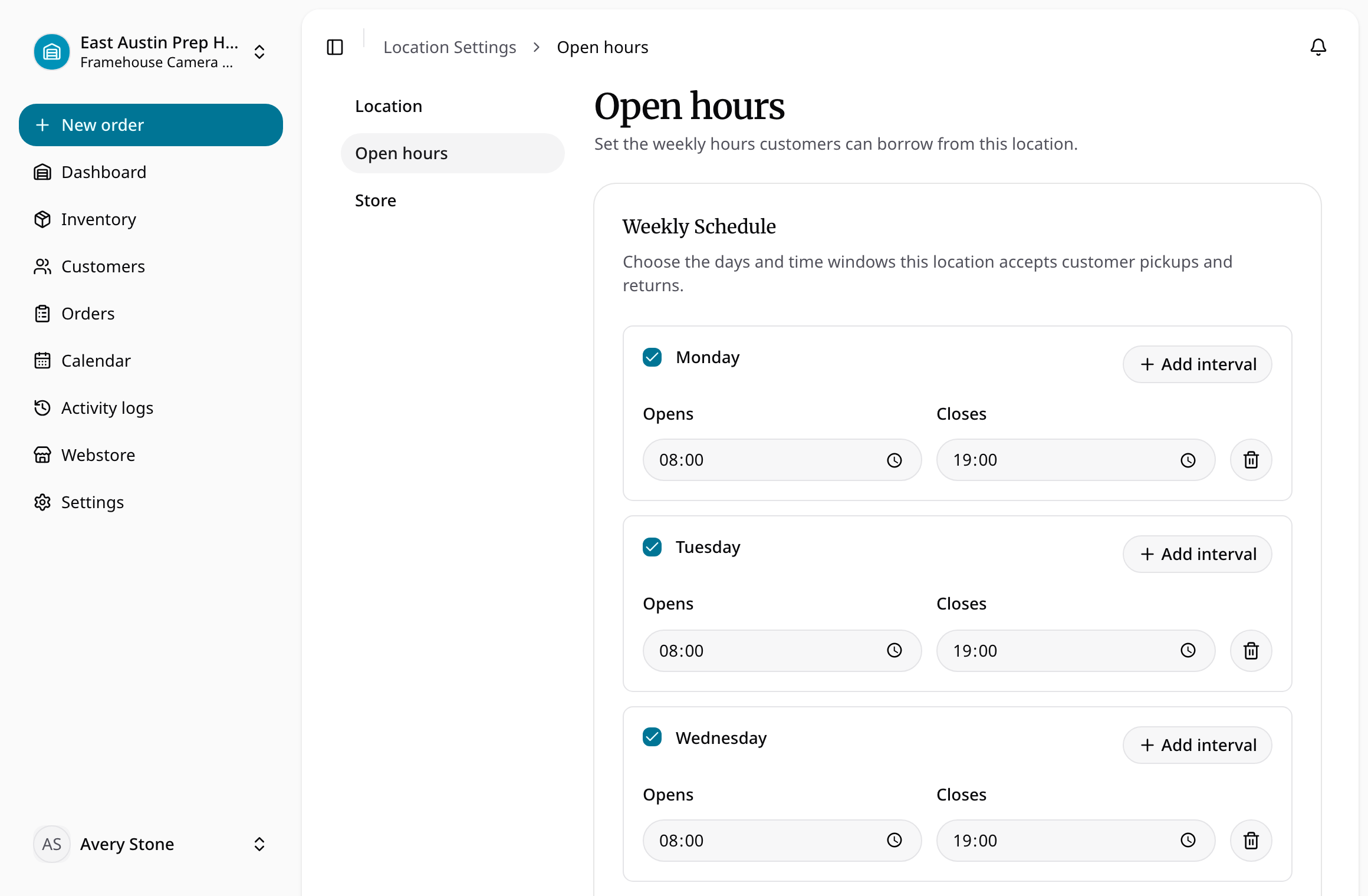
To set your location's opening hours, open Settings and choose Open hours.
Enable the weekdays you are open and set the opening and closing times. For a day with a lunch break, add two separate time windows.
Keep closed days disabled, then save the schedule. Reload and review the week to confirm that the correct pickup and return windows were saved.
Opening hours describe the weekly windows when a location accepts pickups and returns. Each location has its own schedule and time zone.
Save the weekly schedule
- Select the intended location, then open Settings → Open hours as an admin.
- Enable the weekdays on which the location is open. Disable a day to mark it closed.
- Set the opening and closing time for each interval.
- Use Add interval for a split day, such as morning and afternoon hours separated by a lunch break. Remove intervals you no longer need.
- Check that each interval ends after it starts and that intervals on the same day do not overlap.
- Save, then reopen the settings to confirm the complete week.
A closed day has no intervals. Use separate intervals for separate opening windows rather than one interval that includes a closure. Review location details if the displayed local time zone is wrong.
When a schedule will not save
Correct missing times, an end time before the start, or overlapping intervals. The weekly schedule describes opening windows; it does not create rental stock or remove existing order commitments. Check inventory availability separately when arranging a pickup or return.